Ubuntu Server
The K3s cluster can be provisioned on any type of bare-metal hardware. This repository uses Raspberry Pi’s as a bare-metal hardware example — therefore, it is recommended to install the latest Ubuntu Server 24.04+ LTS (64-bit) OS with Raspberry Pi Imager.
OS Installation
Each cluster node uses Ubuntu Server 24.04+ LTS (64-bit) OS installed, which is a requirement for Cilium . The apt package dependencies changed compared to the previous 22.04 release — therefore, 24.04+ is enforced as the minimal requirement.
For generic hardware, install the OS using your favorite provisioning method.
Software
Run the following command to install the Raspberry Pi Imager software:
brew install raspberry-pi-imagerOS General Settings
On each cluster node, under OS Customisation: General section, set only the hostname, username, and password, as well as the locale values:
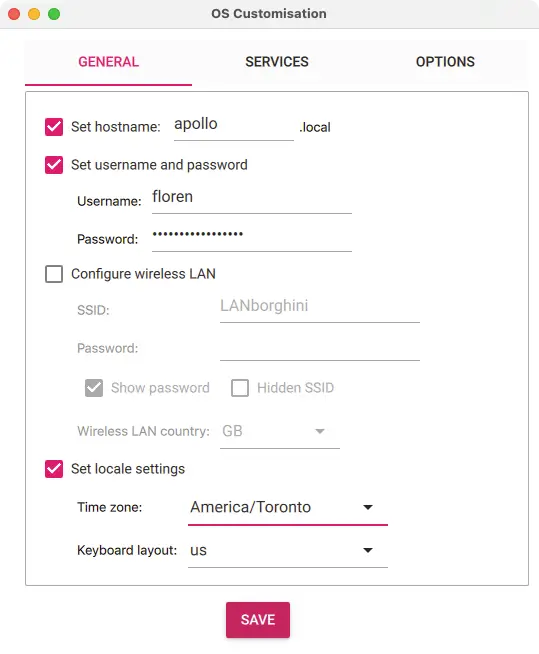
Use the username defined above to set the ansible_username variable.
OS Services
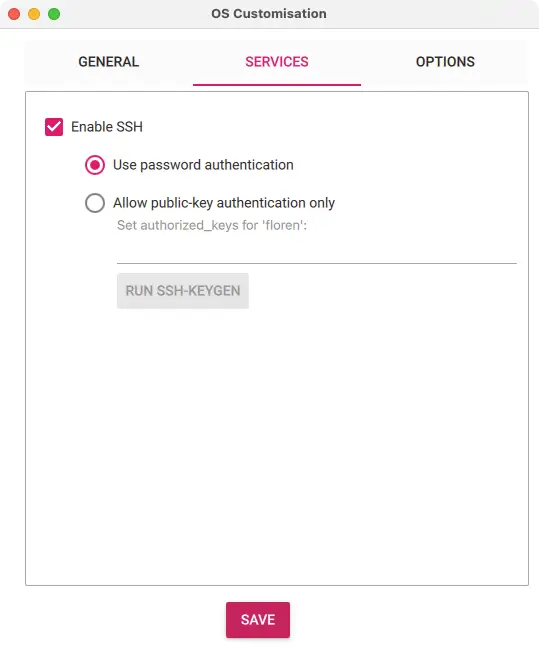
On each cluster node, under OS Customisation: Services section, enable SSH with password authentication:
Hardware
See the cluster_vars.hardware settings listed below, defined in the main.yaml defaults file.
hardware.architecture
Hardware architecture used to identify the cluster node hardware architecture. To determine the hardware architecture, run:
archCommand output:
aarch64Certain roles install required binaries dependent on the hardware architecture.
Example for the k3s binary defined in the main.yaml defaults file:
k3s_vars:
  release:
    k3s:
      checksum: sha256sum-arm64.txt
      file: k3s-arm64
      name: k3s
The correct hardware architecture value for arm64 should be aarch64, with a file named k3s-aarch64, which unfortunately is not the naming convention used in GitHub repositories. The Linux kernel community chose to call their kernel port arm64 (rather than aarch64), hence the use of hardcoded values.
hardware.product
Hardware product, used to identify the cluster node hardware model. To determine the hardware product, run:
lshw -class system -quiet | grep productCommand output:
product: Raspberry Pi 4 Model B Rev 1.5Storage Devices
See the cluster_vars.device settings listed below, defined in the main.yaml defaults file.
To prevent premature wear and improve system performance, the Provisioning playbook disables the atime timestamp on storage device mounts.
device.enabled
Setting the value to false will assume the storage devices are internal and disable any configuration settings related to storage devices attached to hardware through a USB cable adapter.
Validate the storage devices attached with a USB cable adapter to hardware by running the lsusb command:
lsusbCommand output:
Bus 003 Device 001: ID 1d6b:0002 Linux Foundation 2.0 root hub
Bus 002 Device 002: ID 174c:55aa ASMedia Technology Inc. ASM1051E SATA 6Gb/s bridge, ASM1053E SATA 6Gb/s bridge, ASM1153 SATA 3Gb/s bridge, ASM1153E SATA 6Gb/s bridge
Bus 002 Device 001: ID 1d6b:0003 Linux Foundation 3.0 root hub
Bus 001 Device 002: ID 2109:3431 VIA Labs, Inc. Hub
Bus 001 Device 001: ID 1d6b:0002 Linux Foundation 2.0 root hub
For example, connecting the storage device with different USB cable models might result in a different device.name. Similarly, connecting the storage device to a different USB port will result in a different device.id.
Run the Validation playbook to validate the USB storage device values.
device.id
The storage device attached with a USB cable adapter to hardware is identified as Bus 002 Device 002, which sets the device.id to 2:2. To test if the value is correct, run:
lsusb -s '2:2'Command output:
Bus 002 Device 002: ID 174c:55aa ASMedia Technology Inc. ASM1051E SATA 6Gb/s bridge, ASM1053E SATA 6Gb/s bridge, ASM1153 SATA 3Gb/s bridge, ASM1153E SATA 6Gb/s bridgedevice.name
The storage device USB cable adapter chipset is identified as ASMedia Technology Inc. bridge, which sets the device.name to ASMedia Technology. To test if the value is correct, run:
lsusb -s '2:2' | grep 'ASMedia Technology'Command output:
Bus 002 Device 002: ID 174c:55aa ASMedia Technology Inc. ASM1051E SATA 6Gb/s bridge, ASM1053E SATA 6Gb/s bridge, ASM1153 SATA 3Gb/s bridge, ASM1153E SATA 6Gb/s bridgeHostname Validation
Depending on the network router in use, the hostname might not resolve correctly in Ubuntu. Prior to cluster deployment, verify the hostname FQDN is correctly set.
Server Login
Log in to one of the cluster nodes:
ssh apolloValidation
Validate the /etc/hosts configuration:
cat /etc/hosts | grep apolloIf the output is as listed below, no action is required:
127.0.1.1 apollo.local apolloThe Provisioning playbook will validate on each cluster node if the above format is respected and correct it if needed.
You can check the detected server node FQDNs by running:
hostname --all-fqdnsThe output should be:
apollo.local apollo